
14 Google Maps Tricks Travelers Need to Know

What’s the app you use most while traveling? Probably something that helps you find your way around, right? Google Maps is the best of the lot, with accurate navigation, detailed maps, and loads of features that keep getting added and updated all the time.
Unfortunately, many of those extras are hidden away in menus and settings. You often won’t find them unless you really go and hunt them out.
To save you the trouble, I’ve spent far too much time digging through every part of the app and website, and uncovered fourteen of the most useful Google Maps tricks and secrets for travelers.
They’ll save you time, money and energy, help find places you didn’t even know existed, keep a journal of your entire trip, and much more. Enjoy!
Who Needs Internet When You’ve Got Offline Maps?
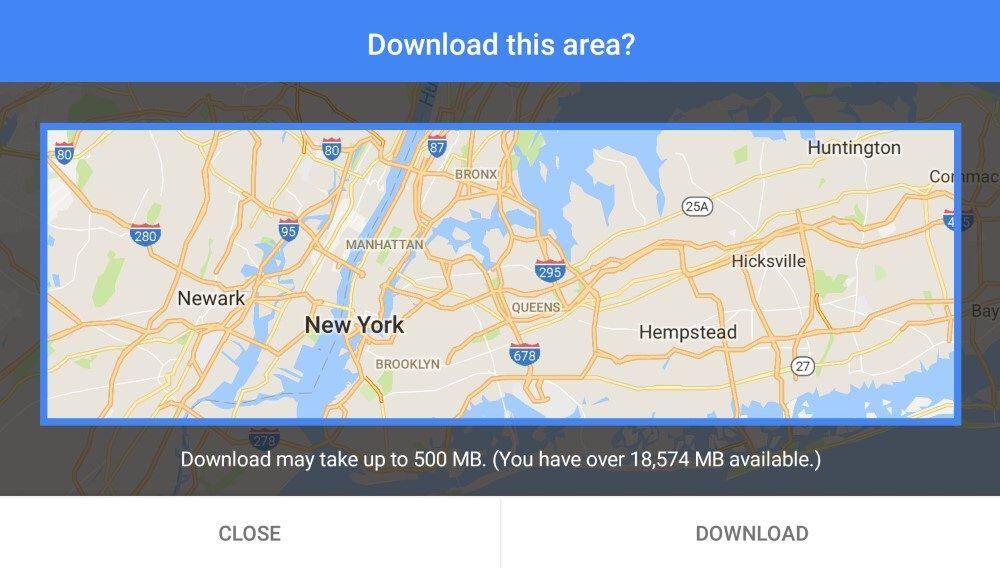
Let’s get this one out the way right off the bat: you don’t need an internet connection to use the Google Maps app on your phone or tablet. In a world where roaming data is typically still expensive, slow, or both, this is a huge bonus.
While the company has messed around with offline support a lot over the years, it now lets you reliably download maps to the app ahead of time and use them while traveling. You can even keep your phone in flight mode while navigating, since GPS will still work.
You can do this for as many cities or regions as you like (or at least, as you have storage space for), then delete them when you’re done. You’ll want to download them over Wi-Fi, since the maps can be quite large.
You can only get driving directions (not walking or cycling) while offline, but you can still see where you are and find any address or landmark just by searching for it. Due to licensing, language and other restrictions, not every country has offline maps available, but most do.
To download a map, search for any address (or just the name of a city or region) in the app. Swipe up from the bottom to get more information, and tap the Download button.
Zoom in or out to select the exact area you want, then tap Download. To manage the areas you’ve already downloaded, tap the menu icon in the search box, then choose “Offline maps”.
PS: It’s worth downloading offline maps even if you’ll have a data connection while traveling, since the app will still use the saved version if it can. This is faster, reduces the amount of data you’re using, and covers you in spotty coverage areas.
Create and Use Custom Travel Maps (Even on Mobile)
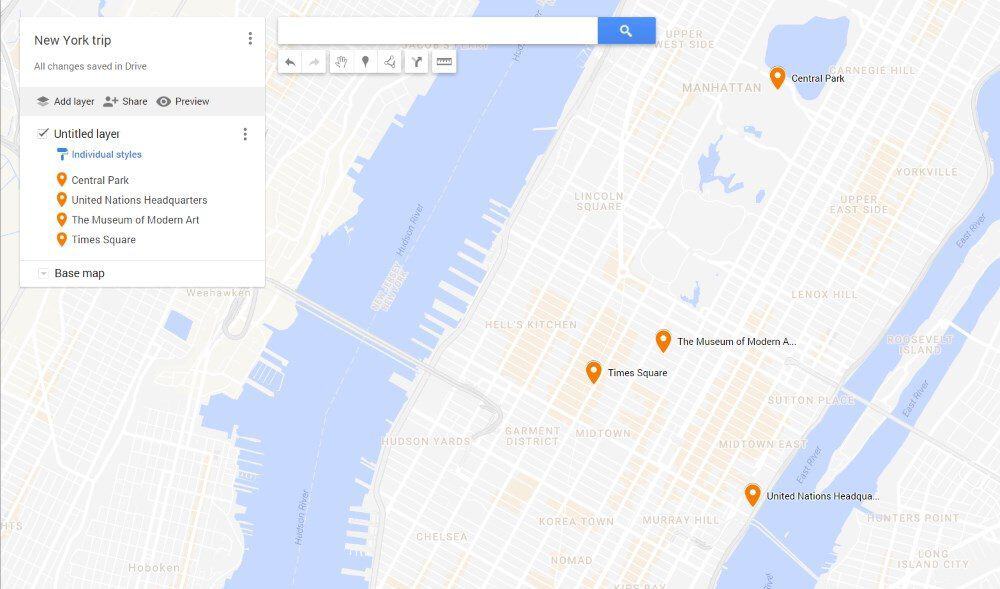
I’m surprised more people don’t take advantage of Google’s custom map maker, really. It’s a good way of creating a visual itinerary for yourself or showing others where you went on your travels. The tool is super-easy to use, and custom maps can be shared with anyone else as needed.
Most people use a desktop browser to create their custom maps, and it’s my preference as well: it’s just easier with a mouse or trackpad and a larger screen. Just because it’s harder to do on a phone, however, doesn’t mean it’s impossible.
You can’t use the usual Google Maps app to create custom versions, so instead, just go to this URL to do the same thing in your mobile browser.
To use one of the maps you’ve created, open up the Google Maps app, tap “Saved” on the bottom menu, and then scroll down to the bottom of the list of saved items and tap the “Maps” icon. There, you’ll see all of the custom maps you’ve ever viewed; just tap one to load it up.
Add Multiple Stops to Your Journey
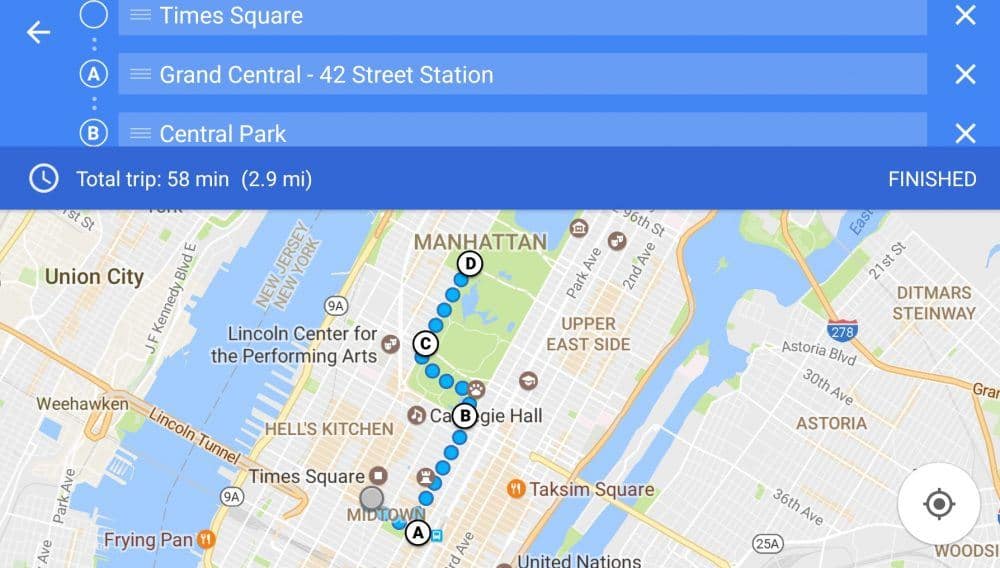
We all know not every journey goes straight from A to B. Wouldn’t it be nice to plan out your route for the day all at once, with multiple stops along the way? Well, you can.
Just get directions between the first two locations as usual, then tap the menu icon on the top right and choose ‘Add Stop’. Search for the next location, and click ‘Add Stop’ as many times as you like until your route is finished.
You’ll see the route mapped out in the app, with each stop assigned a letter. You can change the trip method (car, walking, etc), drag a stop to a different spot if you need to change the order, and delete or add new stops while you’re on the go.
Don’t Let a Slow Device Hold You Back
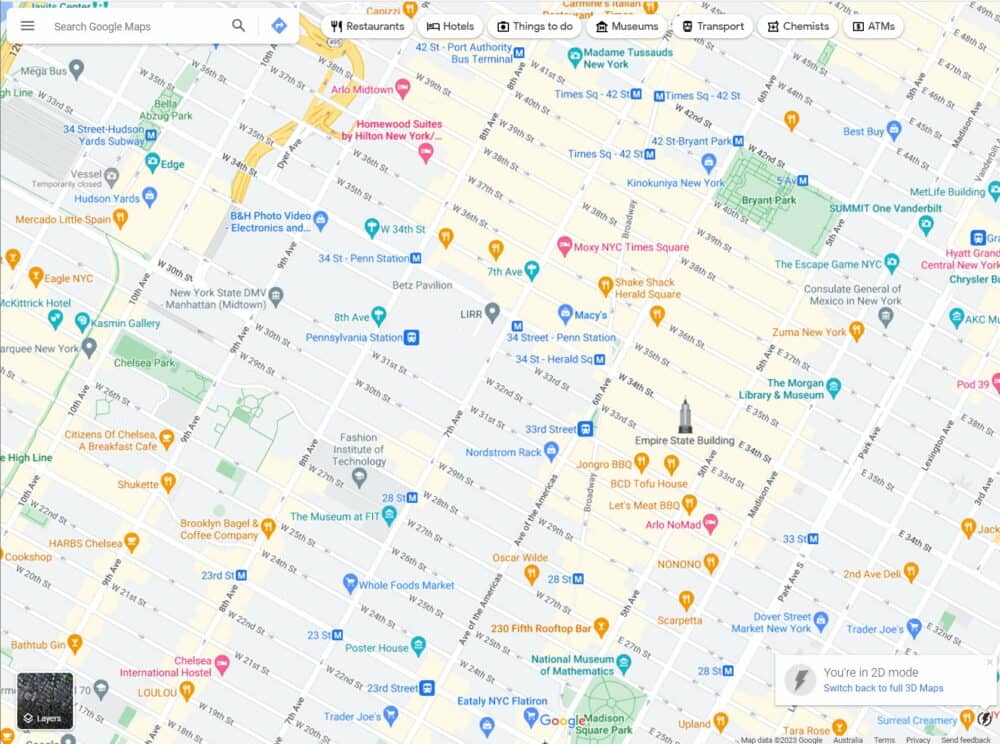
If your laptop is a bit of a dog, or you’re using the website instead of the app on your mobile device, you may have noticed the Google Maps site can be a bit slow to use.
Good news: there’s a special “lite” version that speeds things up by turning off 3D mapping and rendering everything in two dimensions. It’s supposed to switch automatically if it needs to, but the process isn’t perfect.
Fortunately, there’s a way to activate the cut-down version yourself. Just visit this link, and you’ll see a message saying you’re now in 2D mode. If the site is running slow, try this first before swearing at the screen.
Speed Up Your Searches
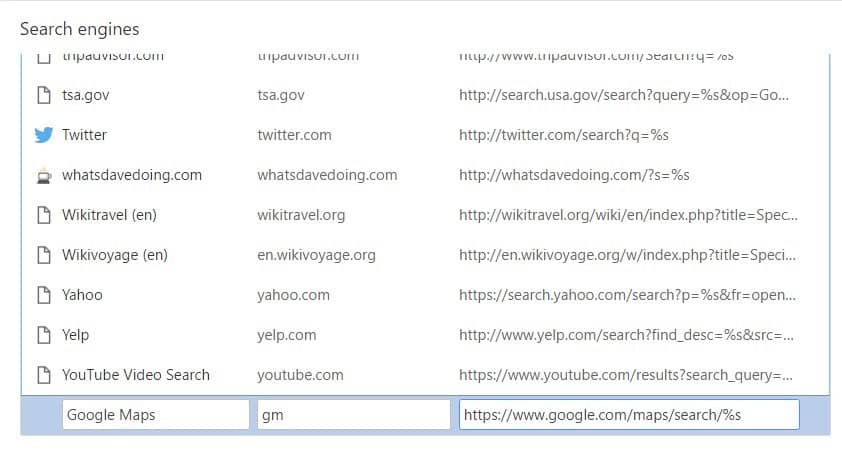
If you use the Chrome browser on your laptop and find yourself turning to Google Maps a lot, why not speed up the search process? Chrome lets you create text shortcuts to a wide variety of search tools, and Maps is one of them.
To create the shortcut, click on the menu icon (three vertical dots) on the top right of the Chrome window, and choose Settings. Scroll down to “Search Engines,” then click “Manage search engines…”.
Scroll down to the bottom of the “Other search engines” section, and you’ll see three boxes for adding a new search engine.
Type Google Maps into the first box, whatever text shortcut you want to use into the second box (I use maps), https://www.google.com/maps/search/%s into the last box, and click Done.
In the future, from the address bar of any tab on Chrome, type “<shortcut> <thing>” to search for that thing in Google Maps. For instance, I’d type “maps statue of liberty” or “maps 29 smith st”. You’ll be surprised just how much it speeds up your searches.
Near Enough Is Good Enough
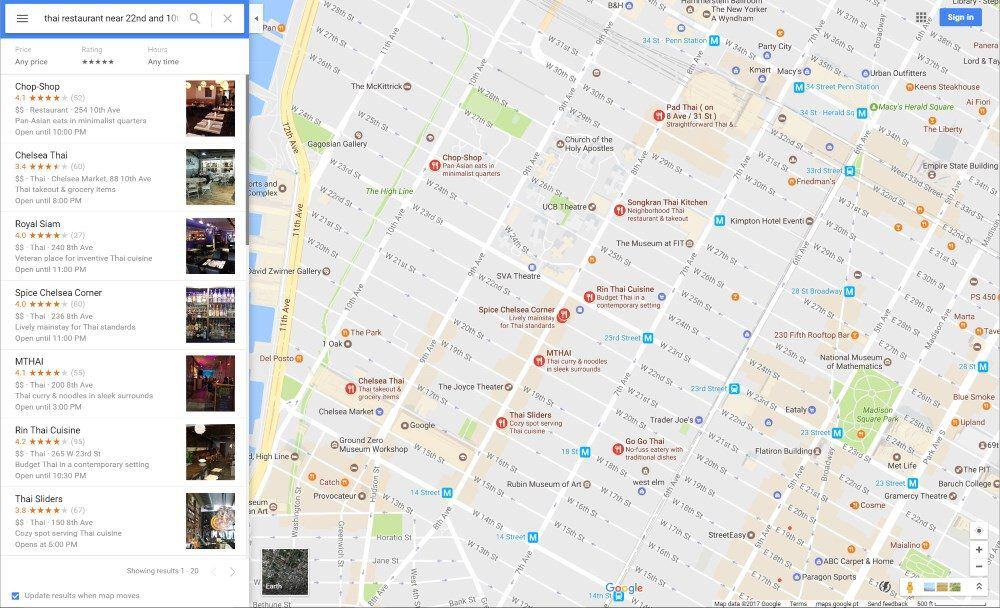
Often when I’m in a new city, I know what I want (like Thai food or an ATM), but not where to get it. That’s where the word “near” becomes very useful. Google Maps understands that concept, so you can search for things like “thai restaurant near 22nd and 10th”, or “atm near me”, and get a few useful suggestions.
It doesn’t get things right all the time, but then again, neither do I. More often than not, though, it helps me track down what I’m after without having to think too hard about it.
Make Home and Work Have a Whole New Meaning
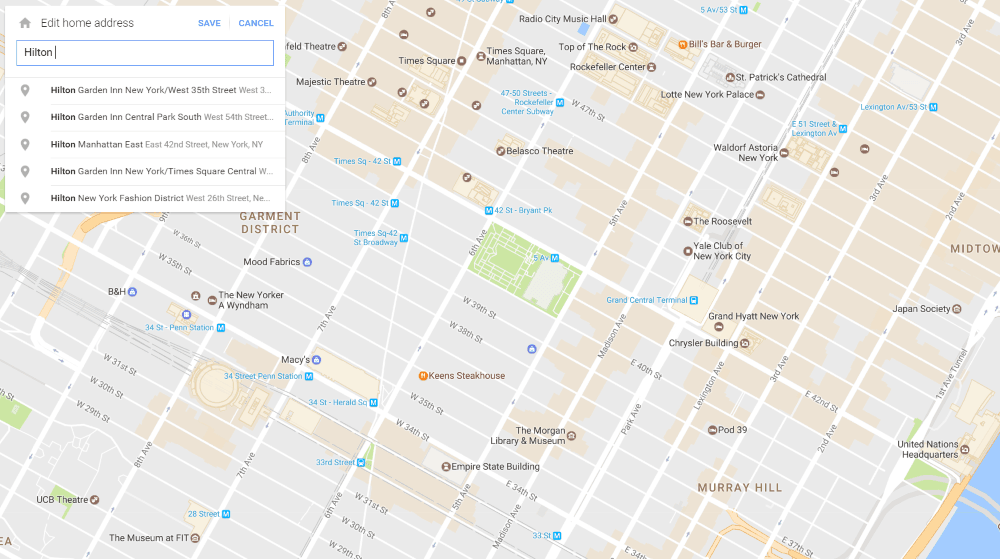
Google lets you save your home and work addresses for easy access, no matter which version of Maps you’re using. That’s helpful in daily life, but you’re unlikely to need to use either of them for navigation while traveling.
Instead, change one to be the address of your current accommodation, by clicking or tapping on the menu icon, then choosing “Your Places”. It only takes a few seconds, and makes it much easier to find your way “home” for as long as you’re in town. That’s doubly true if you’re staying in an Airbnb rental, or anywhere else without a name you can search for.
Now, whenever you need to get back from a long day of exploring, just type “home” or “work” into the app’s search bar, and away you go.
Take Your Directions With You
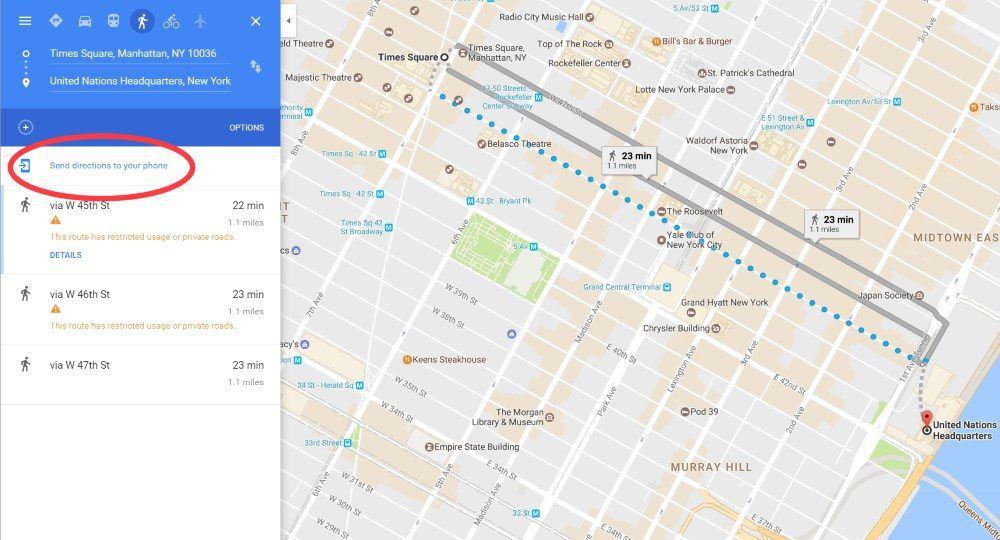
Ever looked up directions on your computer, headed out the door, and promptly forget where you were going? Yeah, me too. While my Google Maps search history usually syncs between my laptop and phone, it doesn’t happen straight away. If I leave the house straight away and don’t have cell data on my phone, I’m often out of luck.
Avoid that problem by sending directions directly to a phone or tablet. Once you’ve chosen your destination(s) and transport method, just click the ‘Send directions to your phone’ link highlighted above.
You can choose between email, text, or sending directly to any of your devices Google knows about.
Time to Get Out the Measuring Tape
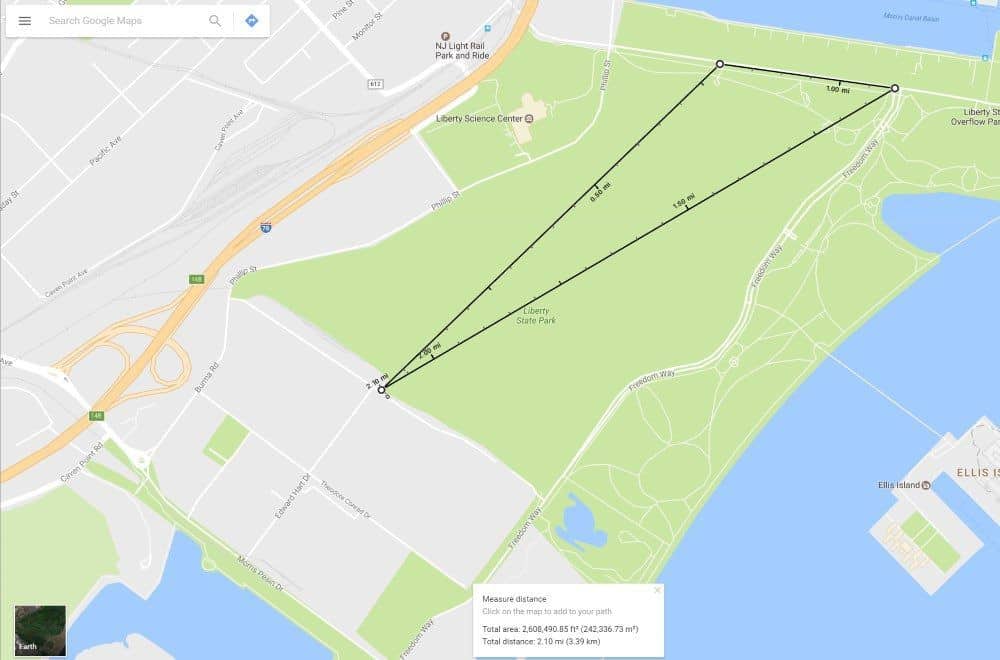
Did you know there’s a measuring tape built right into the Google Maps app and desktop site?
On the website, right-click any point on the map, and choose ‘Measure distance’. Now click anywhere else, and the straight-line distance between the two points comes up. Keep clicking to add more points, and you’ll get the total distance between them all.
In the app, tap and hold anywhere to drop a pin, swipe upwards, and choose ‘Measure distance’. Scroll anywhere else to see the distance between them, and tap the + button to add extra points.
I use this to figure out the distance when planning to walk along a beach, through a large park, or anywhere else that streets and paths don’t go.
It Even Works Indoors
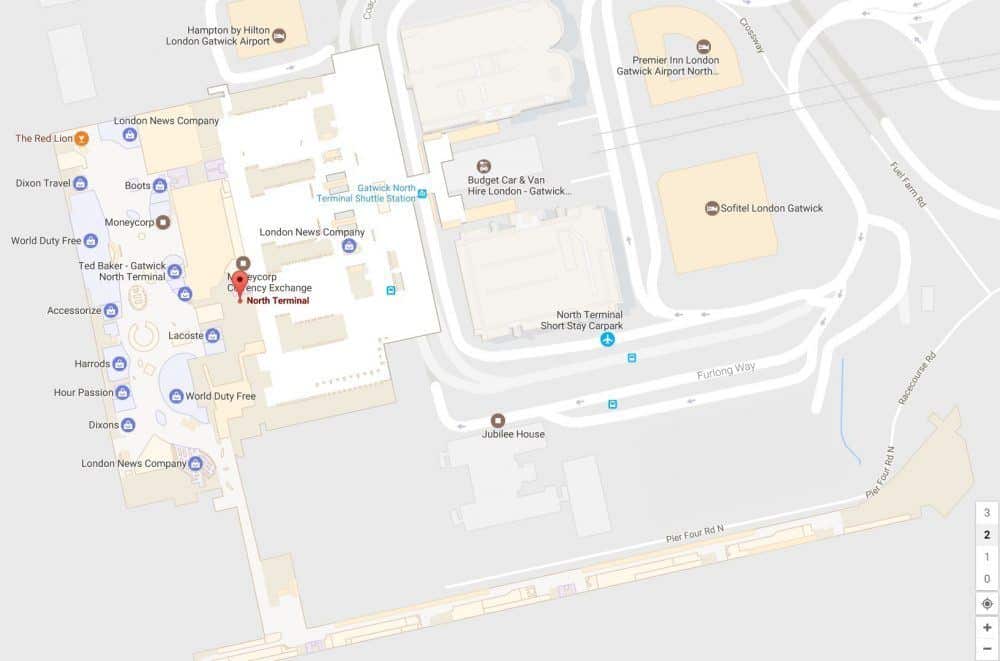
Most people only use Google Maps for finding their way around outdoors, but that’s not the only choice. Floor plans of airports, shopping malls, train stations, sports venues and other large public buildings around the world have been slowly showing up for a while now, and the list of places you’ll find them is growing all the time.
To see them, just zoom in on major buildings until individual shops and areas start being shown. For multi-level buildings, select individual floors via the numbers that show up on the side of the screen. You can even get walking directions between different parts of the building if you need them.
Get regular updates from the world of travel tech and remote work
News, reviews, recommendations and more, from here and around the web
Who Needs Fingers Anyway?
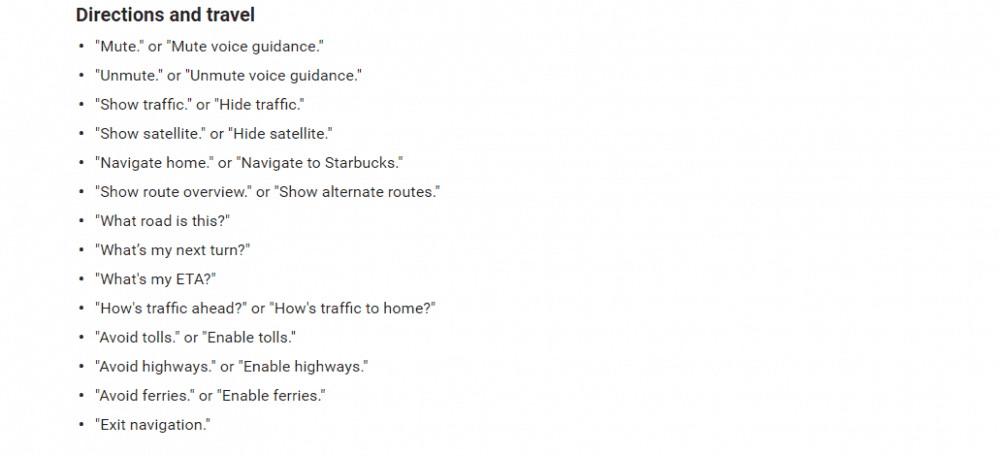
If you use the app for driving, there are good reasons (and sometimes, strictly-enforced laws) why you shouldn’t be swiping around on your phone at the time. Fortunately, there are many built-in voice commands that let you do everything from avoiding tolls to finding a gas station, getting an ETA or traffic report, and much more.
You can find the full list of commands here. To use them when you’re in navigation (ie, driving) mode in the app, just tap the microphone icon near the top of the screen, or say ‘OK Google’, and talk away.
There’s a Travel Journal Built Right In
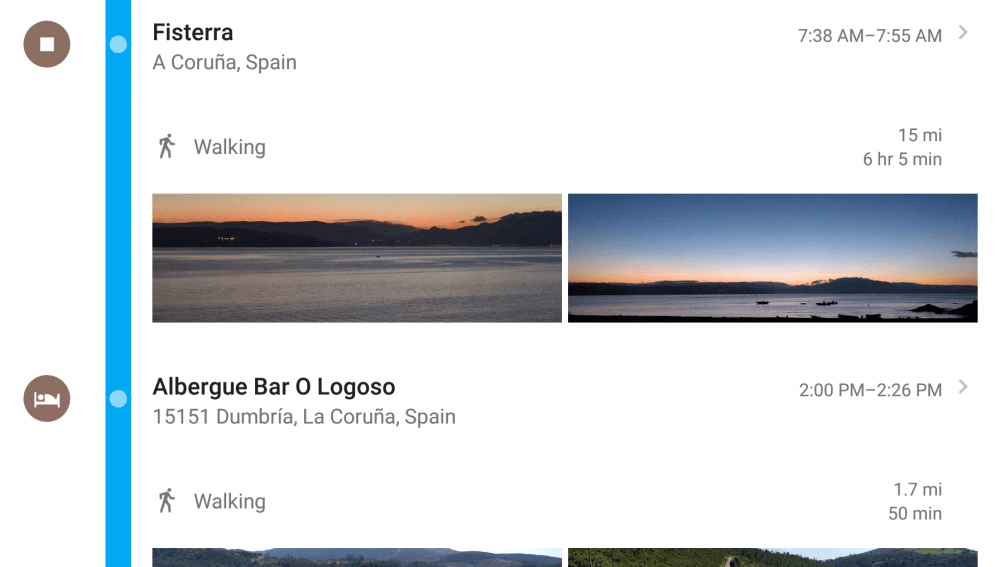
Can’t quite remember the name of that great restaurant you went to last night, or where that amazing viewpoint was? If you had your phone with you at the time, it’s all good. Google has a better memory than you do.
Click on the menu icon in the top left of the Maps website, and choose “Your timeline”. Day by day, you’ll see a map of everywhere you went, along with the total distance traveled.
Anywhere you stopped for a while is highlighted, and there’s a detailed breakdown listed alongside. Any photos you took will also show up, so it’s easy to figure out where you were.
The ‘Your timeline’ feature is also available on iOS and Android devices.
If that’s all a bit creepy for you, you can delete your entire timeline history, or just individual days. You can also turn the feature off entirely if you don’t like it, or set data to be removed after a certain length of time. It’s all in the “Settings and privacy” section of the Timeline menu.
Avoid The Hills
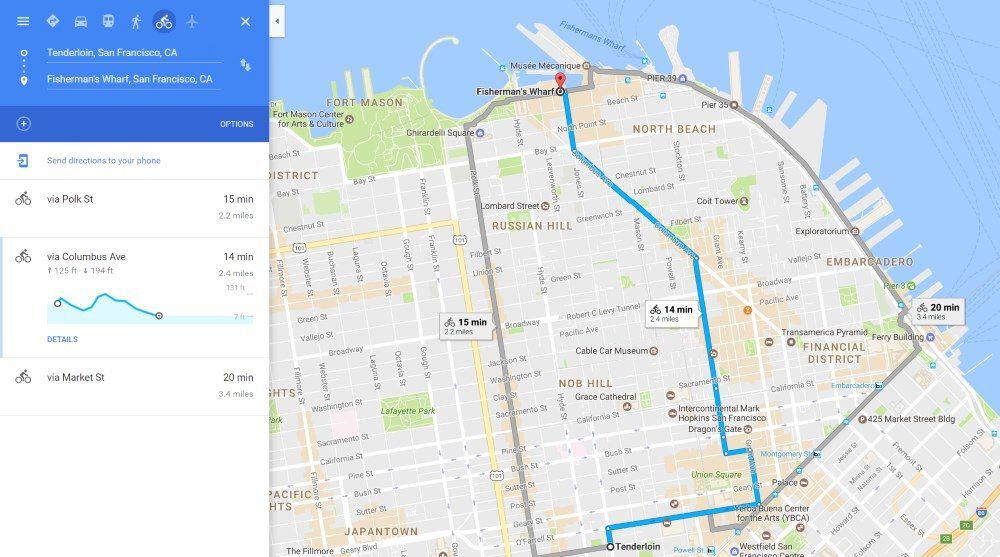
If you’ve ever visited somewhere hilly, you’ll know the shortest walking route is not always best. A longer, flatter option is often the way to go, especially if it’s hot outside (or you don’t like climbing).
Google’s walking directions don’t really seem to take account of elevation changes, something I regularly discovered in Madrid and Lisbon. Its cycling directions do, though, and you’d often follow a similar route on foot.
While not every city or country has been enabled for cycling instructions, it’s always worth checking whether your current hill-filled location has been.
If so, you’ll get a little elevation chart under each route option, and can pick the one that’s most appealing. It works on the website and in the app, although you’ll need to swipe up to see the full chart on the latter.
Get regular updates from the world of travel tech and remote work
News, reviews, recommendations and more, from here and around the web
Share Your Trip
There are plenty of apps out there that let you share your location with other people. When traveling in a group, however, finding one that everyone else uses can be a bit of a challenge.
Chances are that most people have Google Maps on their phone, though. If they do, sharing your current journey with them only takes a couple of taps.
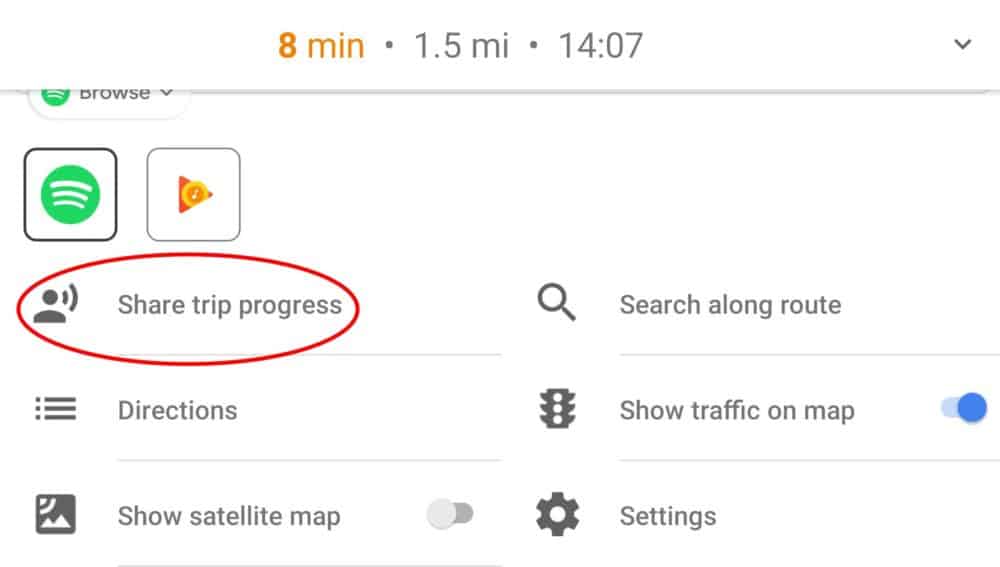
Once you’ve loaded your driving, walking, or cycling directions and hit “Start”, simply tap on the little ^ symbol at the bottom of the app or swipe up, and then “Share trip progress.”
You’ll be presented with a list of people to choose from in your contacts. Select one or more, and they’ll get a notification and email to let them view your progress.
Avatars appear within the app for anyone sharing their trip details with you, updated continually. You can see at a glance whether everyone really is going to get to the airport or restaurant on time like they promised. Location sharing will automatically stop as each person reaches their destination.
Sharing is available on both the iOS and Android versions of the Google Maps app. Your progress is also visible on the desktop site to anyone you’ve shared it with.
So there you go, fourteen Google Maps tricks that’ll help out any traveler. Any you didn’t know about? Got others to share? Hit up the comments below!




Great tips – thanks so much for sharing!
I love the timeline feature in Google Maps. Perfect for remembering where you’ve been.
It also works when you turn your data off via the GPS so when I flew over the Grand Canyon with my phone in airplane mode Google tracked my route.
Great post! Lots of features I didn’t know about that will make my travels much easier.
Hi Dave;
Great post and very useful!
Wil check this out over the next few days
Unfortunately, My Maps don’t work offline, so even if you have an offline map, you still need to be online to be able to make use of the maps you’ve created. I so wish this wasn’t the case!
Yeah, that’s a shame. Doesn’t seem like it’s something that would be that hard to add, though, so maybe it’ll show up in a future version. One can only hope!
You can use the lists integrated in the Google Maps (hearts, flags and stars) now. I don’t recommend to add new lists, as they usually have minor bugs (like disappearing!). Also, I usually associate a “priority level” with each type of list: hearts for hotel/Airbnb, flags for restaurants and stars for places to visit. The shame is that other people can’t edit your list.
Very useful hints here and I’ve saved it to my travel plans Pin.
I don’t see ‘your timeline’ however.
Any suggestions?
The ‘your timeline’ feature is only available on the Maps site and Android devices, not iOS. If you’re using an Apple phone or tablet, that would explain why you can’t see it on there. You can still view it on the site, though.
Update: As of April 2017, Google added the feature for Apple devices as well. 🙂
One thing that it annoyingly doesn’t have is calculating your trip based on the shortest distance, not just fastest time.
One time I entered a trip from A to B with highway which is the fastest route based on time. It was 28 minutes and 15 miles. When I unselect highway, it shows 30 minutes and 10 miles. Duh, of course I rather save 5 miles on my car just for a 2 minute difference.
My 1999 Acura TL navigation had this option! A car with technology back in the Clinton Administration, and yet google can’t figure or ignore to provide it in 2020. SMH
Typing ‘ok maps’ in the search bar saves the map data for offline use the same way you described by a different method.
Indeed it does. That was the only way to do it for a while, until Google decided to make it offline maps an ‘official’ feature again.
How do i disable night mode while navigation?
I don’t believe you can — I think it’s entirely automated.
Thanks for this. Is there a way to disable or hide all the hotel/restaurant/shop icons that appear when searching for a certain location? I looked everywhere and couldn’t find this option.
I understand that they are generating advertising money with all those icons, but these are EXTREMELY poor and distasteful advertising practices, to clutter the map with hotels and restaurants etc. when I have zero interest in them and just want to get to a certain street, just makes me not want to use their maps anymore. If I wanted google to find me a hotel room then I would explicitly ask google to look for it. What is the point of shoving it in my face when I have zero interest in it? Just creates a very unpleasant map experience and strong disinclination to use their maps again.
I don’t think there’s an option to do that (or at least, I can’t see it either). A quick check of other mapping tools (even open source ones like Open Street Maps) shows they do it as well, at least by default, so you may need to do quite a bit of digging and playing with options to find one that meets your requirements — it seems to be a standard part of map/navigation tools these days.
Re: the Add A Stop feature. Once you’ve added, say, 4 or 5 stops for plotting a lengthy trip, Google Maps only shows you the total time from starting location to the last stop on the trip. How can you view the individual time durations in between stops, from, say, Point A to Point B, or Point E to F?
On the desktop browser version, click on the “Details” link for the transport option you want to take, underneath the list of stops. The times between each stop are shown in small text at the end of each set of instructions.
In the app, click on “Steps and More”. You’ll see each destination listed, along with how long it takes to get between each one.
i have made a map on my laptop and then sent the route to my phone. however, it sends the original map that google had, not the one i created. how do you avoid that change from laptop to phone?
I’m not 100% sure what you did to create your map, but if you just created a route by getting directions between two or multiple stops, and then clicked ‘Send directions to your phone’, the process as outlined in the post still works. I just tested it with an Android phone, and all of the details from the desktop version came through on the mobile version.
When I visit another country, Google Maps does not provide turn-by-turn directions. Rather, instead of naming a street etc. GM says “turn here” etc. By contrast, when I’m home in the United States, turn-by-turn street, route etc based directions are not an issue. How can I activate turn-by-turn in other countries. Note: Apple Maps provides specific turn-by-turn in any country I visit without my having to make any setting changes.
There’s no specific setting as far as I’m aware, but it could be related to language settings. Make sure you’re set to ‘Default (English)’ under Google Maps Settings – Navigation Settings – Voice Selection. It specifically says ‘speaks street names’ for me there.
Google also doesn’t offer the same detail for driving directions across all countries. Some like the US have very detailed instructions including lane guidance etc, some have more limited instructions, and a few have no turn by turn navigation at all.
You may also get reduced level of detail if you have spotty or no data service along the way.
If you’re getting better navigation detail from Apple Maps in a country you’re visiting, I guess use that (or something else like Waze) in preference.
Google Maps used to have a feature where you could choose not to have directions, just have Maps running while you’re driving to show traffic and roads. I can’t find that anymore. Did they do away with it?
It’s not quite the same thing, I don’t think, but if you just choose “Start Driving” and don’t choose a destination (plus zoom in a bit), you’ll get your current location overlaid on roads etc.
I want to create a custom route (maybe a loop for a tour), and then select that route / map and get verbal instructions as when I use a route selected by the app
Unfortunately after creating a custom route on desktop and sending to iPhone it appears on my device as a standard Google generated route. Useless
I like the feature to save places found from a map search into lists – example, let’s say I searched for Chinese restaurants in Richmond VA – when looking thru the results, each will have a ‘save’ option – then I can save to a premade (example: “want to visit”) or custom named list. Then once in Richmond, just look at my list to see where I wanted to eat!
I want to share my trip to Florida with several family while driving. If I send them invitations, what should they do if they don’t have Google maps. Do they have to load it in order to follow me or will they get a link that they will be able to follow. Also, do you respond to me with a direct email or do I have to log into this site for any response? Thanks.
Once you’ve shared your location with them (via the app), they can follow your journey using either the app or the website — details here.
We don’t email every time there’s a reply — it gets very noisy on active comment threads — so you’ll need to revisit the site to read responses.